Can Google Forms Record Audio? No. Here Are 3 Workarounds That Actually Work
Google Forms has 12 question types and none records audio. 3 workarounds for voice answers, compared on steps, sign-in, phone support and cost, as of 2026.
The short version
- No. Google's help centre lists 12 Google Forms question types, and none records audio. The Forms API has no audio question kind either; audio exists only as a file type for uploads.
- Workaround 1, file upload, is free but slow: respondents record in another app, then must sign in to a Google Account to upload, per Google's own help page.
- Workaround 2, Mote, adds voice answers through a Chrome extension. Mote says respondents need the extension and a Mote login. We found no Google Workspace Marketplace add-on that does this.
- Workaround 3, a form builder with a native voice field, is the only route with one tap to record and, in some tools, no sign-in at all.
No, Google Forms cannot record audio. It has 12 question types and none of them is a voice or audio question. You can still collect spoken answers around it, with a file upload, a browser extension, or a different form builder, and each of those three workarounds costs your respondents something different.
The free workaround makes your respondents do the recording, the saving and a Google sign-in. That is fine for a class of 30 students who already live in Google accounts. For customers, candidates or a QR code at an event, it is where most of your answers will go missing.
Google Forms cannot record audio. There is no voice question type. You can add a file upload question for audio files recorded in another app, which needs a Google sign-in. You can install a Chrome extension like Mote. Or you can use a form builder with a native voice field, where respondents tap a microphone in their browser.
Why Google Forms has no audio question
Google's help page, Choose a type of question for your form, lists every question type. There are 12. Short answer, paragraph, multiple choice, checkboxes, dropdown, file upload, linear scale, rating, multiple choice grid, checkbox grid, date and time. Nothing records sound.
The developer documentation agrees. The Google Forms API defines eight question kinds, and audio appears only as one of the file types a file upload question can accept. You can see it in the Forms API reference. The same page notes the API cannot create file upload questions at all, so you set them up by hand.
What "audio in Google Forms" usually means online
Search for this topic and many results explain how to add audio to a question. That is the opposite problem. Embedding a clip so respondents can listen is one thing. Getting respondents to speak back is another. This post is only about the second: collecting a spoken answer from the person filling in the form.
Phone dictation is also not a fix. A respondent can tap the microphone on their keyboard and speak into a paragraph box. You receive typed text, with the transcription errors of their keyboard, and no audio. We think that is a reasonable choice for some forms, but it is a text answer, not a voice answer.
Workaround 1: a file upload question for recordings
This is the free route, and the one most guides suggest. You add a file upload question, limit it to audio files, and ask people to record their answer somewhere else first.
- 1You add a file upload questionIn the form editor, choose File upload, then restrict the allowed types to Audio and set a maximum file size and number of files.
- 2The respondent leaves the formThey open a recorder app on their phone or laptop, record their answer and save it somewhere they can find again.
- 3The respondent signs inGoogle requires a Google Account sign-in before anyone can answer a file upload question.
- 4The respondent finds and uploads the fileThey return to the form, tap Add file, browse to the recording and upload it.
- 5You open the files in DriveUploads land in a folder in the form owner's Google Drive, with subfolders per question. The response sheet links to each file.
The sign-in rule is the real cost
Google's help page says that to answer a file upload question, responders need to sign in to a Google Account. That one rule shapes who can answer. Someone without a Google Account, or unwilling to use it on your form, stops here.
The same help page lists two more limits. You cannot use the question type if the form is stored in a shared drive, or if an administrator has turned on Data Loss Prevention. Uploaded files are stored in a new folder in the form owner's Drive, so every recording uses your storage.
Where file upload is good enough
We would not dismiss this route. For a teacher whose students all sign in with school Google accounts, it costs nothing and keeps everything in Drive. The files are real audio, playable in any player. If you need 20 recordings from people you know, it works.
It breaks down with strangers and phones. Switching from the form to a recorder app and back is where people get lost. We would not use it for customer research, hiring screens or anything shared by QR code.
Workaround 2: a browser extension or an external recorder
The second route keeps Google Forms but adds a recorder from somewhere else. There are two versions: an extension that puts a record button inside the form, or a link out to a separate recording tool.
What the Google Workspace Marketplace offers
We searched the Google Workspace Marketplace for voice recorder add-ons for Forms on 8 October 2026. The search returned 11 apps. None was described as recording audio answers inside Google Forms. One general "Voice & Video Recorder" app records audio in Workspace and saves it to Drive, but its listing does not mention Forms. We will not recommend an add-on we could not verify.
Mote: voice answers through a Chrome extension
Mote is the tool most teachers mean when they talk about voice in Google Forms. It is a Chrome extension, not a Marketplace add-on. Mote's help centre says any student with Mote enabled in their browser, and logged into an account, can record a voice response within Google Forms. The article is on Mote's support site.
That makes Mote a good fit for classrooms where IT installs the extension on every Chromebook. It is a poor fit for the public. Asking a customer to install a Chrome extension and create an account before answering one question is a lot of friction.
Cost depends on the plan. Mote's pricing page lists a free plan with 20 voice recordings a month at up to 1 minute each. The Individual plan costs $99 a year and allows 5 minutes per recording. The pages we read did not say whether a respondent's answers count against their own quota or the form creator's, so check that before a large class.
Linking out to a separate recorder
The other version is to put a link in your Google Form that opens a recording tool in a new tab. The respondent records there, then comes back to finish your form. It works, but your answers now live in two places with no shared respondent ID unless you add one. We think this is the weakest of the options, and we only mention it because it is common.
Workaround 3: switch to a form with a native voice field
The third route is to stop working around Google Forms for the voice question. Form builders with a voice field record in the browser. The respondent taps a microphone, speaks and submits, without leaving the page or finding a file.
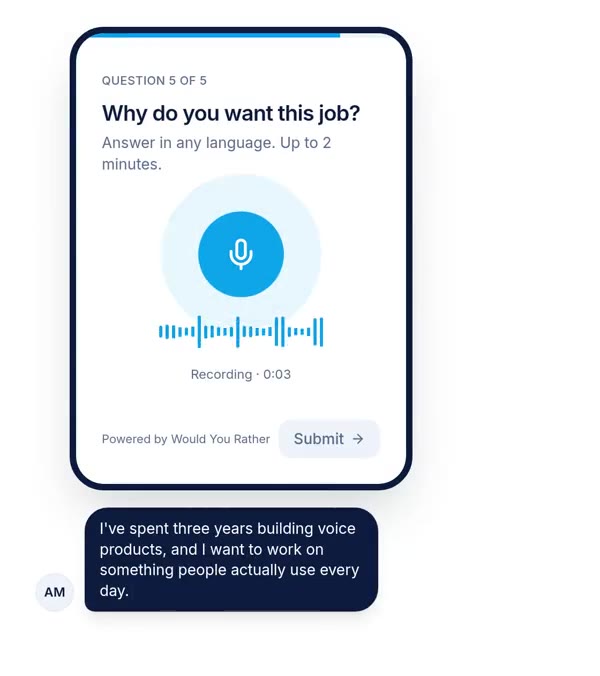
Our own tool, Would You Rather, is one example. Respondents see one question at a time in the phone browser, with no app. You can allow anonymous answers without sign-in on any form, which suits a QR code at an event, as we cover in QR code forms for events. You set a minimum and maximum recording length in seconds. An optional text box lets people type instead, and it is off until you switch it on.
There are honest limits. Would You Rather does not transcribe voice answers. You get the recording and a link to it in Google Sheets or a CSV export, and you run transcription yourself if you need text. We compare the two tools directly in Would You Rather vs Google Forms.
Other tools with a voice field
You have other options. VideoAsk's open-ended steps can take video, audio or text. Its help centre says answers default to 2 minutes, and paid plans can raise that to 5. Jotform has a free Voice Recorder widget, and its help article on recording audio sets a 3-minute maximum. We cover these in the best voice survey tools in 2026, compared from each vendor's public documentation.
Recording limits are the one number most of these tools publish, so here they are together.
The 3 workarounds side by side
Here is how each route compares on what the respondent has to do and what it costs you. The last row is the honest alternative: skip voice and stay on Google Forms.
| Route | Respondent steps to answer | Sign-in needed | On a phone | Cost to you |
|---|---|---|---|---|
| File upload of a recording | Record in another app, save, sign in, find and upload the file | Yes, a Google Account | Possible, but the respondent switches apps | Free; files use your Drive storage |
| Mote Chrome extension | Install the extension, log in, tap record in the form | Yes, a Mote account | Not documented in the Mote pages we read | Free plan: 20 recordings a month, 1 minute each; $99 a year for Individual |
| Link to an external recorder | Open a second tab, record, return to the form | Depends on the tool | Depends on the tool | Depends on the tool; answers split across two places |
| Form with a native voice field | Tap the microphone, speak, submit | Not in tools that allow anonymous answers | Yes, in the phone browser | Would You Rather is free to start; VideoAsk Start is $0 for 20 minutes a month |
| Stay on Google Forms, typed answers only | Type, or use phone dictation | Only if you require it | Yes | Free; Google Forms wins on cost and familiarity |
We think the native voice field is the right choice for anyone outside a Google-account classroom. Google Forms still wins on price and on how many people already know it. If the spoken answer is a nice-to-have, a paragraph box and keyboard dictation may be enough.
When voice answers are worth the switch
Not every form needs a microphone. Spoken answers earn their place on open questions where you want reasons, tone or language that people struggle to type.
Survey research has found that spoken answers on smartphones run much longer than typed ones, and that voice-only questions also lose far more respondents. We walk through the study and its numbers in our analysis of voice survey drop-off. The practical takeaway is to make voice optional and put it after the easy questions.
Good candidates for a switch include oral language tasks and speaking practice, covered in running oral assignments online. Customer stories, screening questions and field research with respondents who read better than they write fit too. For the mechanics of collecting and storing many recordings, see collecting voice recordings online.
Where this advice is weakest
First, we did not test these workarounds hands-on for this post. Every claim comes from Google's, Mote's, VideoAsk's or Jotform's own documentation, opened on 8 October 2026. Real respondent behaviour, such as how many people abandon at the upload step, is not measured here.
Second, Google's help page does not list the file size options or the full set of audio formats a file upload accepts. We did not state them, and you should check the settings in your own form. Third, Mote's documentation does not say clearly how it behaves on phones, or whose recording quota a respondent uses. We have marked both as undocumented rather than guessing.
Fourth, we make one of the tools in workaround 3. We tried to handle that by listing our own limits, including no transcription, and by saying where Google Forms is the better choice.
How to pick a workaround today
Start from who your respondents are, not from the tool. Three questions settle it in most cases.
Do all your respondents already sign in with Google accounts? If yes, and you need fewer than about 20 recordings, the file upload route is free and fine. Do they all use Chrome devices you control, like a school fleet? Then Mote is worth a look. Is the form going to strangers, customers or candidates on their phones? Then move the voice question to a form with a native voice field, and keep everything else as simple taps and text.
If you want a list of tools to choose from, read Google Forms alternatives with voice and video answers. Then build the one question that deserves a spoken answer, send it to five people, and see how many finish.
References
- Google, Choose a type of question for your form, Google Docs Editors Help, opened 8 October 2026. Used for the 12 question types, the sign-in rule, shared drive and DLP limits, and Drive storage of uploads.
- Google, Forms API reference, forms resource, opened 8 October 2026. Used for the list of question kinds and the AUDIO file type.
- Google Workspace Marketplace, search for voice recorder forms, 8 October 2026. Used to check for Forms add-ons that record audio answers.
- Mote, Help! How do I use Mote for Google Forms?, last updated 11 August 2026. Used for the extension and login requirements.
- Mote, Pricing, opened 8 October 2026. Used for free and paid recording limits and the Individual price.
- Jotform, How to record audio and video on mobile forms, last updated 16 March 2026. Used for the Voice Recorder's 3-minute maximum. VideoAsk's pricing page and help article on answer length were also opened for its $0 Start plan and 2 to 5 minute limits.
The weakest thing about this source base: a Marketplace search result page is a snapshot, and an add-on could appear or vanish next week, so our "none found" is true only for 8 October 2026.
Questions people ask
Can Google Forms record audio?
No. Google Forms has no audio or voice question type. Google's help centre lists 12 types: short answer, paragraph, multiple choice, checkboxes, dropdown, file upload, linear scale, rating, two grid types, date and time. The closest option is a file upload question that accepts audio files, but respondents must record the audio somewhere else first and sign in to a Google Account to upload it.
How do I add voice recording in Google Forms?
You cannot add a native voice recorder. You can add a file upload question, restrict it to audio files, and ask people to record in their phone's recorder app first. Or you can use a Chrome extension such as Mote, which adds a record button to Google Forms for respondents who have the extension installed and are logged in. For one-tap recording, use a form builder with a voice field.
Can respondents answer a Google Form by voice?
Only indirectly. They can upload an audio file they recorded elsewhere, which requires a Google Account sign-in. They can use phone dictation to turn speech into typed text in a short answer or paragraph box, but you then receive text, not audio. Or they can record through a third-party extension like Mote. None of these gives you a native audio answer stored by Google Forms itself.
Is there a Google Forms add-on for voice recording?
We searched the Google Workspace Marketplace on 8 October 2026 and found no add-on listed for recording audio answers inside Google Forms. A general Voice and Video Recorder app saves recordings to Drive but does not mention Forms. The best-known option, Mote, is a Chrome extension rather than a Marketplace add-on, and its help centre says respondents need it installed.
Do respondents need a Google account to upload a file in Google Forms?
Yes. Google's help page on question types states that to answer a file upload question, responders need to sign in to a Google Account. The same page says you cannot use file upload questions if the form is stored in a shared drive or if an administrator has turned on Data Loss Prevention. Uploaded files are stored in the form owner's Google Drive.
What is the easiest way to collect voice answers on a form?
Use a form builder that has a voice field built in. The respondent opens a link, taps a microphone in the phone browser, speaks and submits, with no separate recorder app and no file to find. Check three settings before you share it: anonymous answers without sign-in, a time limit per recording, and an optional text box for people who cannot speak aloud.
Drafted with AI from published research, then edited and approved by Shivam Singh.
Would you rather hear the answer?
Make a voice form in a minute. It’s free.
Create a form